

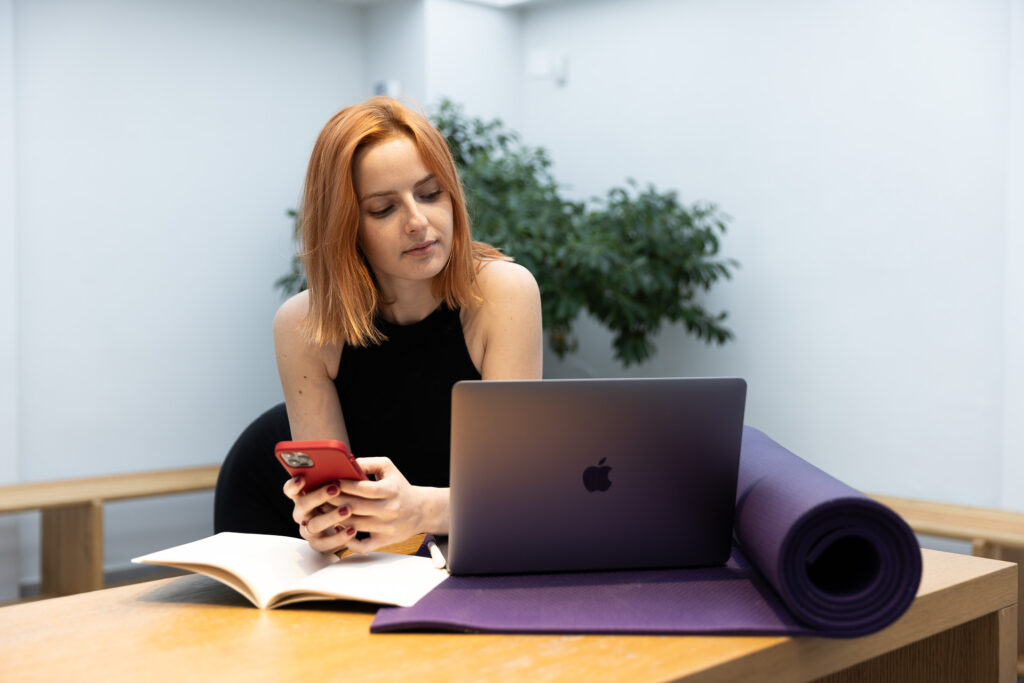
Online class schedule
Online Class Drop in 1
Valid for 1 month from purchase
10€
Online Class Drop in 5
Valid for 1 month from purchase
40€
Online Class Drop in 10
Valid for 3 months from purchase
60€
Summer Free Class: practice with us during August by clicking the buttons below
Hatha Flow with Chiara
Hatha with Andrea
Yin with Caterina
Vinyasa with Martina
Ballet Sculpt with Alexandru
Barre with Camilla
Pilates Matwork with Karin
Classes will be available during the LIVE broadcast and, for those who can't follow them live, for 24 hours afterwards.
If you want to watch the class later rather than live, you still need to book it before it starts. The link to watch the class after the live broadcast will be sent ONLY to those who booked the class but did not attend.
If you have reactivated your membership, you can also access online classes according to the rules of your membership, without having to buy any additional package
This is the class booking schedule (further down the page you'll also find the schedule for accessing virtual classes):
How to book and take part
The booking process is the same one you normally use to book classes, so you can book via the website or the app by logging in to your account.
Here are all the steps to book your online class and follow it on ZOOM:
VIA THE WEBSITE WWW.RYOGA.COM
- Make sure you are logged in to your RYOGA account by clicking "Log in" in the top right corner of the RYOGA website.
- Go to the Sallustiano schedule and check all the classes called VIRTUAL
- Press the book button next to the class you want to attend
- Click on this page the class in the schedule you want to attend
If you don't have login details, go to the page Schedule
Click "book" next to the class you want to follow
You will be redirected to a booking page where you need to choose next
click on Create Profile
fill in all the required fields and click Create Profile again
go back to step 1 and book your class!
VIA THE RYOGA APP on APPLE o ANDROID:
- Open the app and make sure you are logged in by tapping the three lines in the top left corner.
- Go to the schedule and select the Sallustiano location.
- Book the class you want to follow, choosing among those called "VIRTUAL"
- Click on this page the class in the schedule you want to attend
You can buy classes using the buttons above or using the RYOGA APP (Apple Android)
These are the links to access the classes; please remember that access from the ZOOM waiting room will be granted by the virtual Front Desk only to those who have booked.
9:30-10:30 POWER MAT with Alexandra
13:00-14:00 PILATES MATWORK with Karin
15:30-16:30 POWER VINYASA with Alessandro
09:30-10:30 BARRE with Alexandra
14:00-14:00 MOON FLOW with Vania
16:30-17:30 HATHA FLOW with Chiara
13:00-14:00 PILATES MATWORK with Karin
15:30-16:30 POWER VINYASA with Alessandro
09:30-10:30 BARRE with Alexandra
10:30-11:30 PILATES MATWORK with Heloise
16:30-17:30 HATHA FLOW with Chiara
09:00-10:00 POWER MAT with Alexandra
14:00-15:00 YOGA FLOW with Vania
09:15-10:15 PILATES MATWORK with Karin
15:30-16:30 HATHA FLOW with Francesca F.
NOTE:
The links are always the same for every class, but only those who have booked the class correctly will be let in from the Waiting Room, after being checked and recognized by the Virtual Front Desk.
Here are a few tips to be fully ready for class:
- get your mat ready
- if you have them, get your props ready
- set up the spot from which you'll follow the class. This is very important because the teacher will be able, if you wish, to see you while you practice and give you tips if needed. So try to position the device you use to join the class so that you can see the teacher clearly and, if you like, so that the teacher can see your whole body. To do this you can turn on your camera and test it!
Click on your class link 5 minutes before the class starts: you'll enter a virtual waiting room that will become the actual virtual practice room as soon as the front desk checks your booking and lets you in.
If you're new to Zoom and using it for the first time, we recommend allowing an extra 15 minutes before the class starts.
IMPORTANT: Make sure you enter your first and last name when ZOOM asks for it after you click the link to join the class. This step is essential to be recognized in the Waiting Room and be let into the class. Unrecognized users will not be admitted.
Here are some quick tips for using the platform:
Clicking the link above will prompt you to download the app for your mobile device or computer.
If you haven't done so yet, download the APP: you don't need to sign up or register with Zoom, since the link we gave you contains the access passwords, but you do need to download, install and use the application to access the class.
By default, Zoom won't turn on your camera when you join the class, but we invite you to click the "Start video" button so the teacher and the others can see you on their screens.
After the opening part, which may be dedicated to greetings, please mute yourself in the app so you don't disturb the teacher's voice with your breathing or any noise in your home.
Click here https://support.zoom.us/hc/en-us/articles/201362193-How-Do-I-Join-A-Meeting- to visit the Zoom help center: this is the best and easiest way to solve any technical problems before the call.
Some classes can be physically demanding, others may include advanced postures.
So practice with great care. If a posture seems too complicated, stop for a moment and wait for the next one.
If at times you feel too tired, catch your breath for a few seconds and then start again at your own pace.
DISCLAIMER:
By taking part in this online class, I am aware that the class may be physically demanding and I take part voluntarily, aware that there may be a risk of personal injury.
I acknowledge that RYOGA is not responsible for any injuries.
I am aware that any connectivity problems or device-related issues are not RYOGA's responsibility.
FAQ
I already have a RYOGA membership: do I still have to pay for these Zoom classes?
If you have reactivated your membership, you can also use it to follow online classes.
If you chose to request a voucher or your membership has expired and you only want to follow online classes, you can buy one of the packages you'll find at the top of this page
Where do I find the link to connect on the ZOOM APP and follow the class?
The link to each class is at the top of this page. Once you've booked, just click on the class you want on the day you want.
How do I book classes?
Book the class as you usually do through your RYOGA APP (Apple Android) o on the RYOGA website via Mind Body Online
How do I access the class?
Simply click on the link a few minutes before the class. This will install the application needed to take part. Ideally, you should download and install on your phone, tablet or PC the ZOOM APP before clicking the link.
CONNECT WITH US


DOWNLOAD OUR APP

